Precise and Elegant: HAMi's Scheduling Feature by GPU Type and UUID
This article is adapted from: https://mp.weixin.qq.com/s/1eQC2_WGhN7DMNnTW4r0cw
In the previous article, we briefly analyzed the working principle of HAMi-Core (libvgpu.so) vCUDA, including how it takes effect, how CUDA APIs are intercepted, and how it implements resource limits on GPU core and memory.
In this article, we analyze HAMi's scheduling feature: fine-grained scheduling based on GPU type and even UUID.
1. Overview
HAMi provides the ability for precise scheduling by GPU type and GPU UUID:
-
By Type: Schedule Pods by specifying the GPU model (e.g., A100, A40), allowing tasks to be scheduled (or not scheduled) only on cards of certain specified types.
-
By UUID: Schedule tasks by specifying the UUID of a particular GPU, ensuring that tasks are scheduled (or not scheduled) only on the card corresponding to that specific UUID.
These two features allow users to flexibly control Pod scheduling, ensuring tasks run on specific GPUs to optimize resource utilization or meet specific hardware requirements.
For NVIDIA GPUs, regardless of the model,
nvidia.com/gpuis uniformly used as the ResourceName. Even when requesting a fixed 10% of the core, the performance will certainly differ for different GPUs. Therefore, this feature can be used to schedule tasks with higher performance requirements onto high-performance GPUs.
The specific workflow can be divided into the following steps:
-
Device-Plugin Reports GPU Information: The GPU's type and UUID are reported by the device-plugin and registered in the Node's Annotations.
-
Specify Annotations When Creating a Pod: The GPU type or UUID to be scheduled is specified in the Pod's Annotations.
-
HAMi Scheduler Scheduling: The hami-scheduler filters out nodes and GPUs that do not meet the conditions based on the Pod's Annotations and the registered GPU information on the nodes, and finally selects a suitable node and GPU.
-
GPU Allocation: When the device plugin allocates a GPU for the Pod, it retrieves the GPU information from the Annotations and performs the allocation.
The following analysis is based on version v2.4.
2. DevicePlugin Reports GPU Information
This part has been analyzed in detail before. Recommended reading: HAMi vGPU Solution Analysis Part 1: hami-device-plugin-nvidia Implementation
Reporting GPU Information
For the standard DevicePlugin provided by K8s, it can only report how many standard resources each node has, distinguished by ResourceName, for example: nvidia.com/vgpu.
This does not include the GPU information we need for scheduling, such as Type, UUID, memory, etc. Therefore, some custom logic has been added, as follows:
// pkg/device-plugin/nvidiadevice/nvinternal/plugin/register.go#L199
func (plugin *NvidiaDevicePlugin) WatchAndRegister() {
    klog.Info("Starting WatchAndRegister")
    errorSleepInterval := time.Second * 5
    successSleepInterval := time.Second * 30
    for {
       err := plugin.RegistrInAnnotation()
       if err != nil {
          klog.Errorf("Failed to register annotation: %v", err)
          klog.Infof("Retrying in %v seconds...", errorSleepInterval)
          time.Sleep(errorSleepInterval)
       } else {
          klog.Infof("Successfully registered annotation. Next check in %v seconds...", successSleepInterval)
          time.Sleep(successSleepInterval)
       }
    }
}
This WatchAndRegister background Goroutine is started to detect GPU information on the Node and then update it to the Node object in the form of Annotations, thereby registering the GPU information.
The GPU information format is as follows:
// pkg/device-plugin/nvidiadevice/nvinternal/plugin/register.go#L155
res = append(res, &api.DeviceInfo{
    ID:      UUID,
    Count:   int32(*util.DeviceSplitCount),
    Devmem:  registeredmem,
    Devcore: int32(*util.DeviceCoresScaling * 100),
    Type:    fmt.Sprintf("%v-%v", "NVIDIA", Model),
    Numa:    numa,
    Health:  health,
})
So the card model should be in the format NVIDIA-NVIDIA A40, where NVIDIA is a fixed value and NVIDIA A40 is the Model.
Viewing Registered GPU Information
You can find the registered GPU information on a node by parsing the hami.io.node-nvidia-register key in the Node's Annotations, for example:
root@j99cloudvm:~# node=j99cloudvm
kubectl get node $node -o jsonpath='{.metadata.annotations.hami\.io/node-nvidia-register}'
GPU-03f69c50-207a-2038-9b45-23cac89cb67d,10,46068,100,NVIDIA-NVIDIA A40,0,true:GPU-1afede84-4e70-2174-49af-f07ebb94d1ae,10,46068,100,NVIDIA-NVIDIA A40,0,true:
The above node contains two GPUs. The UUID and Type are respectively:
-
Card1: GPU-03f69c50-207a-2038-9b45-23cac89cb67d NVIDIA-NVIDIA A40
-
Card2: GPU-1afede84-4e70-2174-49af-f07ebb94d1ae NVIDIA-NVIDIA A40
When using it later, you will need to specify the UUID or Type mentioned above.
3. Specifying GPU When Creating a Pod
Related demos are provided in the Examples directory: https://github.com/Project-HAMi/HAMi/tree/master/examples/nvidia
By Type
Specify that the Pod should be scheduled to a GPU of type A40.
apiVersion: v1
kind: Pod
metadata:
  name: gpu-pod
  annotations:
    nvidia.com/use-gputype: "A40"
spec:
  containers:
    - name: ubuntu-container
      image: ubuntu:18.04
      command: ["bash", "-c", "sleep 86400"]
      resources:
        limits:
          nvidia.com/gpu: 2
Specify that GPUs of type A100 should not be used.
apiVersion: v1
kind: Pod
metadata:
  name: gpu-pod
  annotations:
    nvidia.com/nouse-gputype: "A100"
spec:
  containers:
    - name: ubuntu-container
      image: ubuntu:18.04
      command: ["bash", "-c", "sleep 86400"]
      resources:
        limits:
          nvidia.com/gpu: 2
By UUID
Use UUID to specify that the Pod should be scheduled to the corresponding GPU.
apiVersion: v1
kind: Pod
metadata:
  name: gpu-pod
  annotations:
    nvidia.com/use-gpuuuid: "GPU-03f69c50-207a-2038-9b45-23cac89cb67d,GPU-03f69c50-207a-2038-9b45-23cac89cb67e"
spec:
  containers:
    - name: ubuntu-container
      image: ubuntu:18.04
      command: ["bash", "-c", "sleep 86400"]
      resources:
        limits:
          nvidia.com/gpu: 1
Use UUID to prevent the Pod from being scheduled to certain GPUs.
apiVersion: v1
kind: Pod
metadata:
  name: gpu-pod
  annotations:
    nvidia.com/nouse-gpuuuid: "GPU-03f69c50-207a-2038-9b45-23cac89cb67d"
spec:
  containers:
    - name: ubuntu-container
      image: ubuntu:18.04
      command: ["bash", "-c", "sleep 86400"]
      resources:
        limits:
          nvidia.com/gpu: 2
4. Scheduler Processing of Annotations
The processing logic for By Type, By UUID, Use, and NoUse is similar, so we won't go into all of them. We'll use Use ByType as an example for analysis.
Refer to the previous articles on HAMi scheduling:
HAMi vGPU Solution Analysis Part 3: hami-scheduler Workflow Analysis
The scheduling process is as follows:
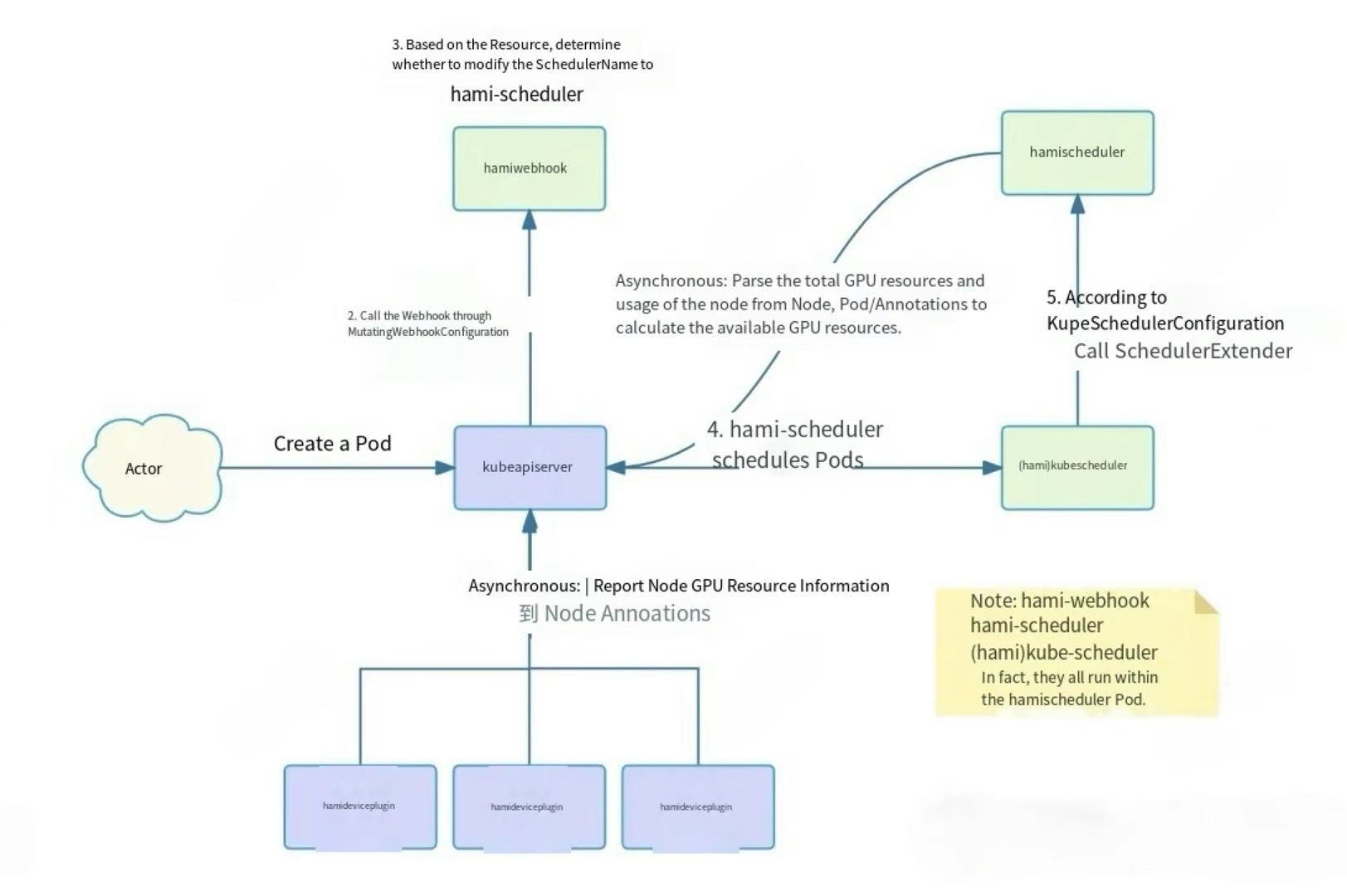
-
A user creates a Pod and requests vGPU resources in it.
-
The kube-apiserver requests the HAMi-Webhook according to the MutatingWebhookConfiguration.
-
The HAMi-Webhook checks the Resources in the Pod. If vGPU resources managed by HAMi are requested, it changes the SchedulerName in the Pod to
hami-scheduler, so this Pod will be scheduled by the hami-scheduler.- For privileged Pods, the Webhook will skip processing.
- For Pods that use vGPU resources but specify a
nodeName, the Webhook will reject them directly.
-
The hami-scheduler schedules the Pod. However, it uses the default k8s kube-scheduler image, so the scheduling logic is the same as the default-scheduler. But the kube-scheduler will also call the Extender Scheduler plugin according to the KubeSchedulerConfiguration.
- This Extender Scheduler is another Container in the hami-scheduler Pod, which provides both Webhook and Scheduler related APIs.
- When a Pod requests vGPU resources, the kube-scheduler will call the Extender Scheduler plugin via HTTP according to the configuration, thus implementing custom scheduling logic.
-
The Extender Scheduler plugin contains the actual HAMi scheduling logic. During scheduling, it scores and selects nodes based on the remaining resources on the nodes.
- This includes the implementation of advanced scheduling strategies like spread & binpack.
-
Asynchronous tasks, including GPU awareness logic.
- A background Goroutine in the devicePlugin periodically reports the GPU resources on the Node and writes them to the Node's Annotations.
- In addition to the DevicePlugin, asynchronous tasks are also used to submit more information by patching annotations.
- The Extender Scheduler plugin parses the total GPU resources from the Node Annotations and the used GPU resources from the Annotations of running Pods on the Node, calculates the remaining available resources for each Node, and saves them in memory for scheduling use.
The entire scheduling is divided into Node level and Card level. By default, the target is selected according to the configured Binpack or Spread scheduling strategy.
Specifying a GPU via Annotations is an additional logic. It requires selecting a suitable Card based on the configuration in the Annotations, and finally selecting a suitable node based on the Card.
Filtering Out Unsatisfied Cards Based on Annotations
The core logic is in the fitInCertainDevice method, which checks each card one by one to see if it meets the conditions, including whether the Core and Memory meet the Pod's request, and the Type and UUID restrictions parsed from the Annotations.
When all cards on a Node do not meet the conditions, it means the current Node also does not meet the conditions, so the Node is also filtered out.
Finally, we get the nodes that meet the conditions and the cards on those nodes that meet the conditions. Then, the target node and card are selected based on the configured Binpack or Spread scheduling strategy.
// pkg/scheduler/score.go#L65
func fitInCertainDevice(node *NodeUsage, request util.ContainerDeviceRequest, annos map[string]string, pod *corev1.Pod, allocated *util.PodDevices) (bool, map[string]util.ContainerDevices) {
    k := request
    originReq := k.Nums
    prevnuma := -1
    klog.InfoS("Allocating device for container request", "pod", klog.KObj(pod), "card request", k)
    var tmpDevs map[string]util.ContainerDevices
    tmpDevs = make(map[string]util.ContainerDevices)
    for i := len(node.Devices.DeviceLists) - 1; i >= 0; i-- {
        found, numa := checkType(annos, *node.Devices.DeviceLists[i].Device, k)
        if !found {
            continue
        }
        if numa && prevnuma != node.Devices.DeviceLists[i].Device.Numa {
            k.Nums = originReq
            prevnuma = node.Devices.DeviceLists[i].Device.Numa
            tmpDevs = make(map[string]util.ContainerDevices)
        }
        if !checkUUID(annos, *node.Devices.DeviceLists[i].Device, k) {
            continue
        }

        memreq := int32(0)
        if node.Devices.DeviceLists[i].Device.Count <= node.Devices.DeviceLists[i].Device.Used {
            continue
        }
        if k.Coresreq > 100 {
            klog.ErrorS(nil, "core limit can't exceed 100", "pod", klog.KObj(pod))
            k.Coresreq = 100
            //return false, tmpDevs
        }
        if k.Memreq > 0 {
            memreq = k.Memreq
        }
        if k.MemPercentagereq != 101 && k.Memreq == 0 {
            //This incurs an issue
            memreq = node.Devices.DeviceLists[i].Device.Totalmem * k.MemPercentagereq / 100
        }
        if node.Devices.DeviceLists[i].Device.Totalmem-node.Devices.DeviceLists[i].Device.Usedmem < memreq {
            continue
        }
        if node.Devices.DeviceLists[i].Device.Totalcore-node.Devices.DeviceLists[i].Device.Usedcores < k.Coresreq {
            continue
        }
        // Coresreq=100 indicates it want this card exclusively
        if node.Devices.DeviceLists[i].Device.Totalcore == 100 && k.Coresreq == 100 && node.Devices.DeviceLists[i].Device.Used > 0 {
            continue
        }
        // You can't allocate core=0 job to an already full GPU
        if node.Devices.DeviceLists[i].Device.Totalcore != 0 && node.Devices.DeviceLists[i].Device.Usedcores == node.Devices.DeviceLists[i].Device.Totalcore && k.Coresreq == 0 {
            continue
        }
        if !device.GetDevices()[k.Type].CustomFilterRule(allocated, request, tmpDevs[k.Type], node.Devices.DeviceLists[i].Device) {
            continue
        }
        if k.Nums > 0 {
            klog.InfoS("first fitted", "pod", klog.KObj(pod), "device", node.Devices.DeviceLists[i].Device.ID)
            k.Nums--
            tmpDevs[k.Type] = append(tmpDevs[k.Type], util.ContainerDevice{
                Idx:       int(node.Devices.DeviceLists[i].Device.Index),
                UUID:      node.Devices.DeviceLists[i].Device.ID,
                Type:      k.Type,
                Usedmem:   memreq,
                Usedcores: k.Coresreq,
            })
        }
        if k.Nums == 0 {
            klog.InfoS("device allocate success", "pod", klog.KObj(pod), "allocate device", tmpDevs)
            return true, tmpDevs
        }
        if node.Devices.DeviceLists[i].Device.Mode == "mig" {
            i++
        }
    }
    return false, tmpDevs
}
By Type
// pkg/scheduler/score.go#L38
func checkType(annos map[string]string, d util.DeviceUsage, n util.ContainerDeviceRequest) (bool, bool) {
    // General type check, NVIDIA->NVIDIA MLU->MLU
    klog.V(3).InfoS("Type check", "device", d.Type, "req", n.Type)
    if !strings.Contains(d.Type, n.Type) {
        return false, false
    }
    for _, val := range device.GetDevices() {
        found, pass, numaAssert := val.CheckType(annos, d, n)
        if found {
            return pass, numaAssert
        }
    }
    klog.Infof("Unrecognized device %s", n.Type)
    return false, false
}

func checkGPUtype(annos map[string]string, cardtype string) bool {
    cardtype = strings.ToUpper(cardtype)
    if inuse, ok := annos[GPUInUse]; ok {
        useTypes := strings.Split(inuse, ",")
        // if false return false...
        if !ContainsSliceFunc(useTypes, func(useType string) bool {
            return strings.Contains(cardtype, strings.ToUpper(useType))
        }) {
            return false
        }
    }
    if unuse, ok := annos[GPUNoUse]; ok {
        unuseTypes := strings.Split(unuse, ",")
        // if true return false
        if ContainsSliceFunc(unuseTypes, func(unuseType string) bool {
            return strings.Contains(cardtype, strings.ToUpper(unuseType))
        }) {
            return false
        }
    }
    return true
}
It also includes both TypeUse and TypeNoUse.
if inuse, ok := annos[GPUInUse]; ok {
    useTypes := strings.Split(inuse, ",")
    // if false return false...
    if !ContainsSliceFunc(useTypes, func(useType string) bool {
        return strings.Contains(cardtype, strings.ToUpper(useType))
    }) {
        return false
    }
}```

Here, `cardtype` is in a format like `NVIDIA-NVIDIA-A40`, and `useType` is the Type specified by the user in the Annotations.

At the same time, `strings.Contains(cardtype, strings.ToUpper(useType))` is used for matching, so you can specify a full name like `NVIDIA-NVIDIA-A40` or a short name like `A40` in the Annotations.

When the current Card does not match any of the Use Types specified in the Annotations, it means the current Card does not meet the conditions, so it returns false.

For NoUse Type, if the current Card matches any Card in NoUse, it means the current Card is in the blacklist, and it also returns false.

```go
if unuse, ok := annos[GPUNoUse]; ok {
    unuseTypes := strings.Split(unuse, ",")
    // if true return false
    if ContainsSliceFunc(unuseTypes, func(unuseType string) bool {
        return strings.Contains(cardtype, strings.ToUpper(unuseType))
    }) {
        return false
    }
}
This way, cards that do not meet the requirements are filtered out.
By UUID
UUID is the same. The Use UUID and NoUse UUID lists specified by the user are parsed from the Annotations, and then the current Card is matched to filter out unsatisfied cards.
// pkg/scheduler/score.go#L54
func checkUUID(annos map[string]string, d util.DeviceUsage, n util.ContainerDeviceRequest) bool {
    devices, ok := device.GetDevices()[n.Type]
    if !ok {
        klog.Errorf("can not get device for %s type", n.Type)
        return false
    }
    result := devices.CheckUUID(annos, d)
    klog.V(2).Infof("checkUUID result is %v for %s type", result, n.Type)
    return result
}

func (dev *NvidiaGPUDevices) CheckUUID(annos map[string]string, d util.DeviceUsage) bool {
    userUUID, ok := annos[GPUUseUUID]
    if ok {
        klog.V(5).Infof("check uuid for nvidia user uuid [%s], device id is %s", userUUID, d.ID)
        // use , symbol to connect multiple uuid
        userUUIDs := strings.Split(userUUID, ",")
        for _, uuid := range userUUIDs {
            if d.ID == uuid {
                return true
            }
        }
        return false
    }

    noUserUUID, ok := annos[GPUNoUseUUID]
    if ok {
        klog.V(5).Infof("check uuid for nvidia not user uuid [%s], device id is %s", noUserUUID, d.ID)
        // use , symbol to connect multiple uuid
        noUserUUIDs := strings.Split(noUserUUID, ",")
        for _, uuid := range noUserUUIDs {
            if d.ID == uuid {
                return false
            }
        }
        return true
    }

    return true
}
Note: Unlike Type, UUID uses an exact match.
Recording the Target Card in Annotations
After the fitInCertainDevice method filters out the suitable Node and Card, the Scheduler's Bind interface directly binds the Node and Pod to complete the scheduling. However, the Card is allocated by the DevicePlugin, so the Scheduler records the Card on the Pod in the form of Annotations, which the DevicePlugin can then read directly.
sort.Sort(nodeScores)
m := (*nodeScores).NodeList[len((*nodeScores).NodeList)-1]
klog.Infof("schedule %v/%v to %v %v", args.Pod.Namespace, args.Pod.Name, m.NodeID, m.Devices)
annotations := make(map[string]string)
annotations[util.AssignedNodeAnnotations] = m.NodeID
annotations[util.AssignedTimeAnnotations] = strconv.FormatInt(time.Now().Unix(), 10)

for _, val := range device.GetDevices() {
    val.PatchAnnotations(&annotations, m.Devices)
}
The Annotations look something like this:
root@test:~/lixd/hami# k get po hami-30 -oyaml
apiVersion: v1
kind: Pod
metadata:
  annotations:
    hami.io/bind-phase: allocating
    hami.io/bind-time: "1732072495"
    hami.io/vgpu-devices-allocated: GPU-1afede84-4e70-2174-49af-f07ebb94d1ae,NVIDIA,20000,30:;
    hami.io/vgpu-devices-to-allocate: GPU-1afede84-4e70-2174-49af-f07ebb94d1ae,NVIDIA,20000,30:;
    hami.io/vgpu-node: test
    hami.io/vgpu-time: "1732072495"
Here, hami.io/vgpu-devices-to-allocate is the target GPU selected by the Scheduler for the Pod.
5. DevicePlugin Parses and Allocates the GPU
During scheduling, we recorded the finally selected GPU in the Pod's Annotations. The DevicePlugin doesn't need to select a GPU; it can just parse it from the Annotations.
// pkg/util/util.go#L281
func GetNextDeviceRequest(dtype string, p corev1.Pod) (corev1.Container, ContainerDevices, error) {
    pdevices, err := DecodePodDevices(InRequestDevices, p.Annotations)
    if err != nil {
        return corev1.Container{}, ContainerDevices{}, err
    }
    klog.Infof("pod annotation decode value is %+v", pdevices)
    res := ContainerDevices{}

    pd, ok := pdevices[dtype]
    if !ok {
        return corev1.Container{}, res, errors.New("device request not found")
    }
    for ctridx, ctrDevice := range pd {
        if len(ctrDevice) > 0 {
            return p.Spec.Containers[ctridx], ctrDevice, nil
        }
    }
    return corev1.Container{}, res, errors.New("device request not found")
}

// pkg/util/util.go#L254
func DecodePodDevices(checklist map[string]string, annos map[string]string) (PodDevices, error) {
    klog.V(5).Infof("checklist is [%+v], annos is [%+v]", checklist, annos)
    if len(annos) == 0 {
        return PodDevices{}, nil
    }
    pd := make(PodDevices)
    for devID, devs := range checklist {
        str, ok := annos[devs]
        if !ok {
            continue
        }
        pd[devID] = make(PodSingleDevice, 0)
        for _, s := range strings.Split(str, OnePodMultiContainerSplitSymbol) {
            cd, err := DecodeContainerDevices(s)
            if err != nil {
                return PodDevices{}, nil
            }
            if len(cd) == 0 {
                continue
            }
            pd[devID] = append(pd[devID], cd)
        }
    }
    klog.InfoS("Decoded pod annos", "poddevices", pd)
    return pd, nil
}
The specific parsing logic is as follows, which is to split by colons and commas according to preset rules.
// pkg/util/util.go#L223
func DecodeContainerDevices(str string) (ContainerDevices, error) {
    if len(str) == 0 {
        return ContainerDevices{}, nil
    }
    cd := strings.Split(str, OneContainerMultiDeviceSplitSymbol)
    contdev := ContainerDevices{}
    tmpdev := ContainerDevice{}
    klog.V(5).Infof("Start to decode container device %s", str)
    if len(str) == 0 {
        return ContainerDevices{}, nil
    }
    for _, val := range cd {
        if strings.Contains(val, ",") {
            //fmt.Println("cd is ", val)
            tmpstr := strings.Split(val, ",")
            if len(tmpstr) < 4 {
                return ContainerDevices{}, fmt.Errorf("pod annotation format error; information missing, please do not use nodeName field in task")
            }
            tmpdev.UUID = tmpstr[0]
            tmpdev.Type = tmpstr[1]
            devmem, _ := strconv.ParseInt(tmpstr[2], 10, 32)
            tmpdev.Usedmem = int32(devmem)
            devcores, _ := strconv.ParseInt(tmpstr[3], 10, 32)
            tmpdev.Usedcores = int32(devcores)
            contdev = append(contdev, tmpdev)
        }
    }
    klog.V(5).Infof("Finished decoding container devices. Total devices: %d", len(contdev))
    return contdev, nil
}
At this point, the entire process is complete.
6. Summary
-
HAMi provides a feature to specify scheduling to (or not to) a certain type (or individual) of GPU:
- By Type: Specify the GPU Type to only schedule (or not schedule) to cards of certain specified types, e.g., A100, A40.
- By UUID: Specify the GPU UUID to only schedule (or not schedule) to the card corresponding to that specific UUID.
- This feature allows for more fine-grained scheduling, which is useful when there are multiple types of GPUs in the cluster.
-
You can find the registered GPU information on a node by parsing the
hami.io.node-nvidia-registerkey in the Node's Annotations, for example:root@j99cloudvm:~# node=j99cloudvm kubectl get node $node -o jsonpath='{.metadata.annotations.hami\.io/node-nvidia-register}' GPU-03f69c50-207a-2038-9b45-23cac89cb67d,10,46068,100,NVIDIA-NVIDIA A40,0,true:GPU-1afede84-4e70-2174-49af-f07ebb94d1ae,10,46068,100,NVIDIA-NVIDIA A40,0,true: -
Matching rules:
- For Type,
strings.Containsis currently used, so you can specify the full name of the type,NVIDIA-NVIDIA A40, or the short name,A40. - For UUID, it is an exact match; they must be identical.
- For Type,
-
If the Annotations are filled in incorrectly, for example, by specifying a non-existent UUID or Type, it will cause scheduling to fail, and the Pod will remain in a Pending state.
To learn more about the HAMi project, please visit our GitHub repository or join our Slack community.